# Visualized program（recommended）

## Step 1 ：Download the installer package

<table data-card-size="large" data-view="cards"><thead><tr><th></th><th data-hidden data-card-cover data-type="files"></th></tr></thead><tbody><tr><td><a href="https://github.com/Titannet-dao/titanedge-desktop/releases/download/0.0.7/titan_win_v0.0.7.exe"><mark style="color:red;"><strong>Windows Installer (.exe)</strong></mark></a></td><td><a href="https://content.gitbook.com/content/6MWUoQBijnrc0tNWtAzG/blobs/QVLRBw2I1IeNnsGcPMMS/windows-logo-m1-chip-black-background-gradient-windows-10-5k-3440x1440-5918.jpg">windows-logo-m1-chip-black-background-gradient-windows-10-5k-3440x1440-5918.jpg</a></td></tr><tr><td><a href="https://github.com/Titannet-dao/titanedge-desktop/releases/download/0.0.7/titan_mac_v0.0.7.dmg"><mark style="color:red;"><strong>MacOS Installer (.dmg)</strong></mark></a></td><td><a href="https://content.gitbook.com/content/6MWUoQBijnrc0tNWtAzG/blobs/GH5EJzESsWHQnOsX23Gb/image__22_.jpeg">image__22_.jpeg</a></td></tr></tbody></table>

## Step 2: Install the program

{% tabs %}
{% tab title="🖼️Windows Tutorial" %}

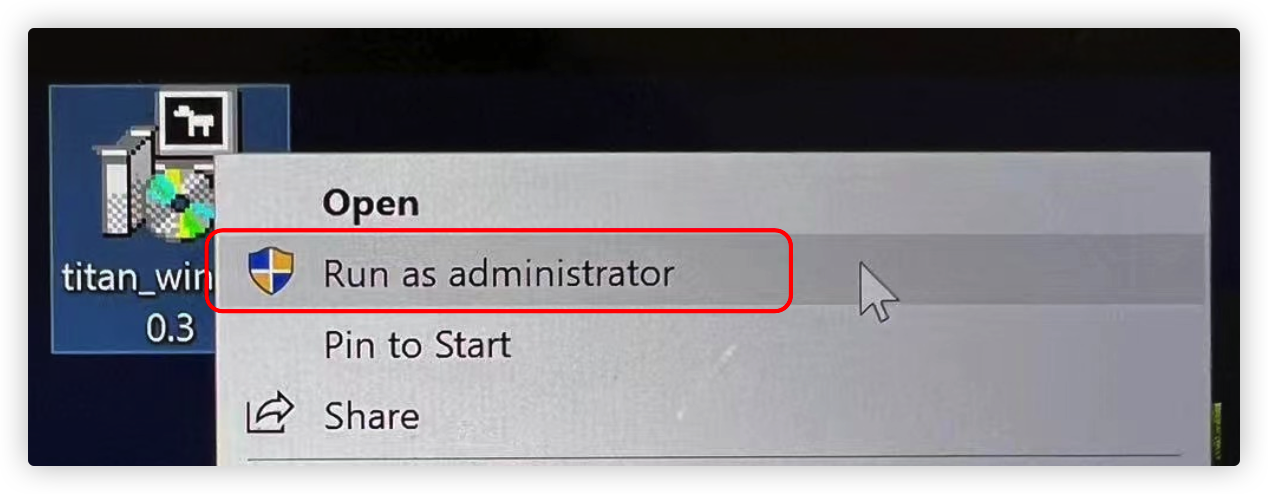
#### 1.Install the package and right-click to “run as administrator”

<figure><img src="https://3087894035-files.gitbook.io/~/files/v0/b/gitbook-x-prod.appspot.com/o/spaces%2F6MWUoQBijnrc0tNWtAzG%2Fuploads%2F66Rf1hTAkwEJVatMzCvH%2Fimage.png?alt=media&#x26;token=c026d3f6-82c7-4060-a99a-618524977e00" alt=""><figcaption></figcaption></figure>

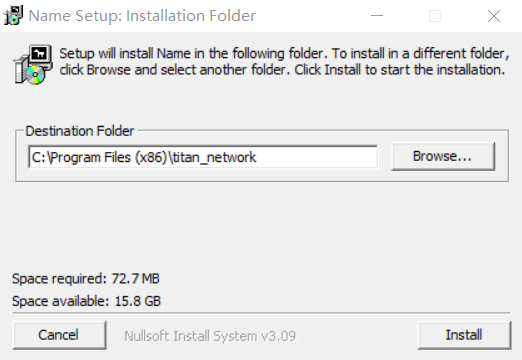
#### 2.Select your usual installation path and click Install to confirm the installation

<figure><img src="https://content.gitbook.com/content/6MWUoQBijnrc0tNWtAzG/blobs/CKoElqkyjwspFOveDEuc/image.png" alt="" width="392"><figcaption></figcaption></figure>

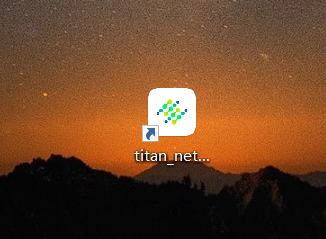
#### 3.Double-click the Titan shortcut on your desktop to run

<figure><img src="https://content.gitbook.com/content/6MWUoQBijnrc0tNWtAzG/blobs/fyM3HcrMoQO0hUAMhcyC/image.png" alt=""><figcaption></figcaption></figure>
{% endtab %}

{% tab title="🍎MacOS Tutorial" %}

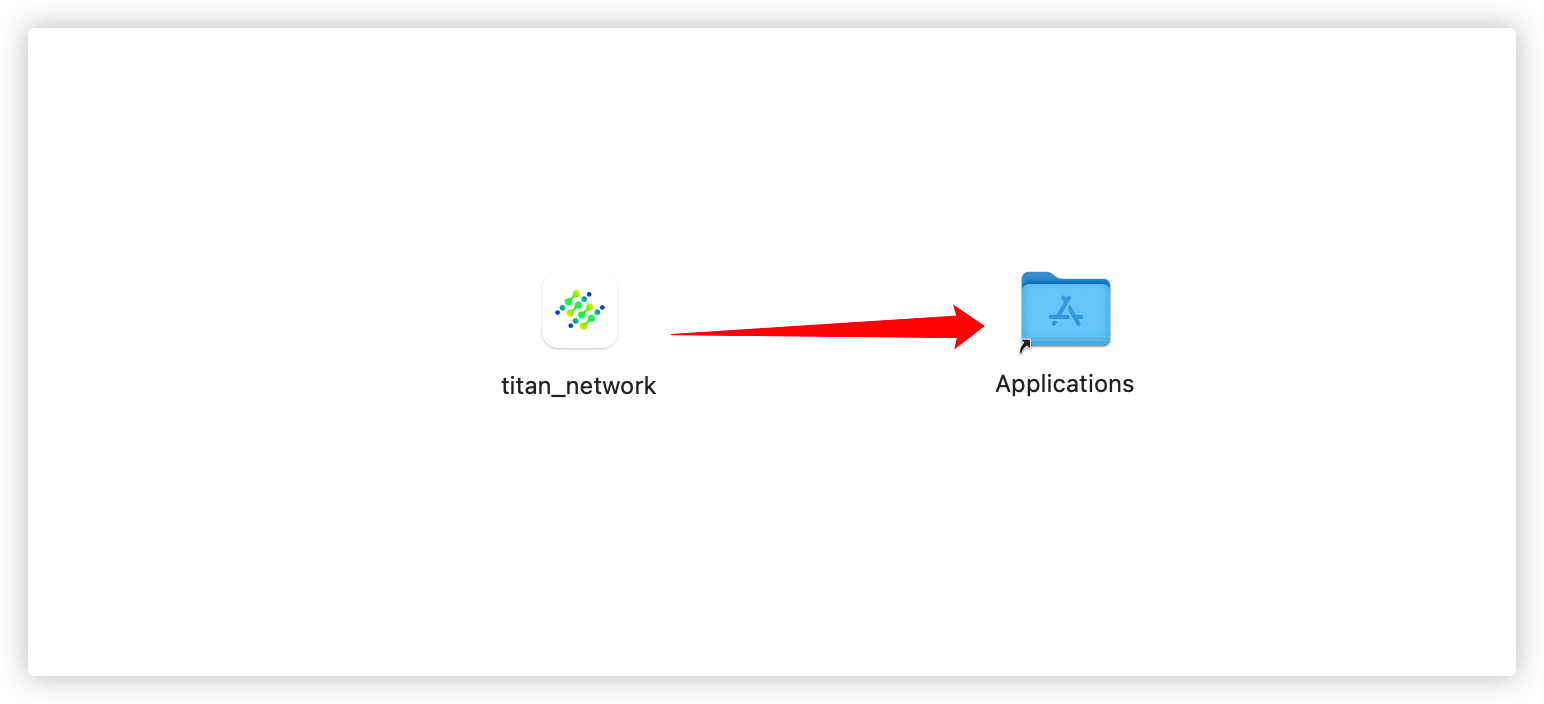
#### 1. Drag the downloaded installation package to Applications to complete the installation.

<figure><img src="https://content.gitbook.com/content/6MWUoQBijnrc0tNWtAzG/blobs/ZhSrd2ILI1NXfa61qnvC/image.png" alt="" width="563"><figcaption></figcaption></figure>

#### 2.When opening the file for the first time, there may be a risk warning.

<figure><img src="https://3087894035-files.gitbook.io/~/files/v0/b/gitbook-x-prod.appspot.com/o/spaces%2F6MWUoQBijnrc0tNWtAzG%2Fuploads%2FPWfCw3MVmwrD3mZJ5gqQ%2FWechatIMG2686.jpg?alt=media&#x26;token=d45e95fe-0634-4b98-aea8-6ca20eb8d970" alt=""><figcaption></figcaption></figure>

#### 3.Click on the Mac logo in the top left corner&#x20;

<figure><img src="https://3087894035-files.gitbook.io/~/files/v0/b/gitbook-x-prod.appspot.com/o/spaces%2F6MWUoQBijnrc0tNWtAzG%2Fuploads%2FVwrcO2rIwfoxlRNcu5u0%2FWechatIMG2687.jpg?alt=media&#x26;token=d201ec69-58e9-4245-ba0b-8c1247bc9818" alt=""><figcaption><p>Open System Settings</p></figcaption></figure>

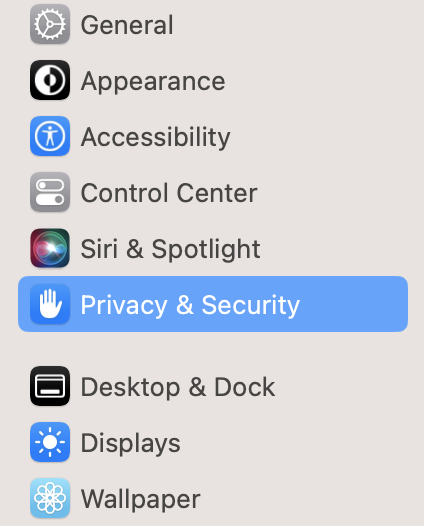
<figure><img src="https://3087894035-files.gitbook.io/~/files/v0/b/gitbook-x-prod.appspot.com/o/spaces%2F6MWUoQBijnrc0tNWtAzG%2Fuploads%2FYsB8674ow3UF7fsM7Ems%2FWechatIMG2688.jpg?alt=media&#x26;token=85452e47-6f49-4da7-b478-c30bfc3576c6" alt=""><figcaption><p>Open Privacy &#x26; Security</p></figcaption></figure>

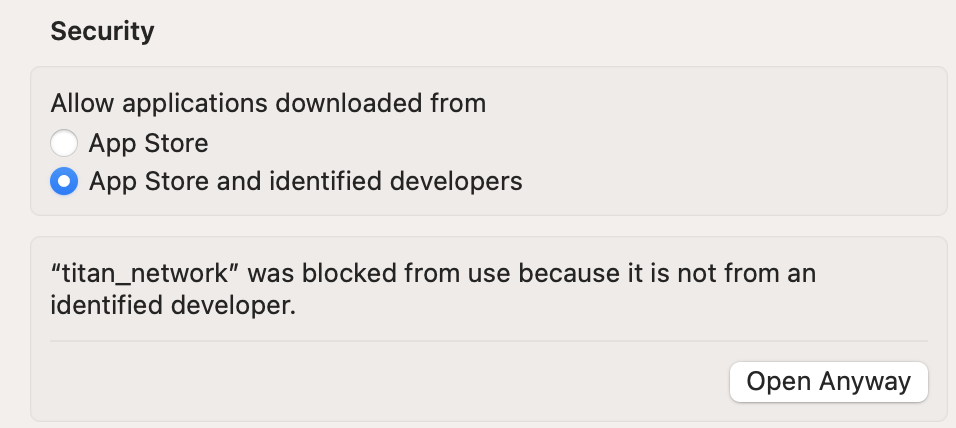
<figure><img src="https://3087894035-files.gitbook.io/~/files/v0/b/gitbook-x-prod.appspot.com/o/spaces%2F6MWUoQBijnrc0tNWtAzG%2Fuploads%2FSWJ0d6VdfTASZWtsmwE6%2FWechatIMG2689.jpg?alt=media&#x26;token=975b414a-4ac4-4897-bf48-02870ef2ed4d" alt=""><figcaption><p>Select Open Anyway</p></figcaption></figure>
{% endtab %}
{% endtabs %}

## Step 3 Start earning

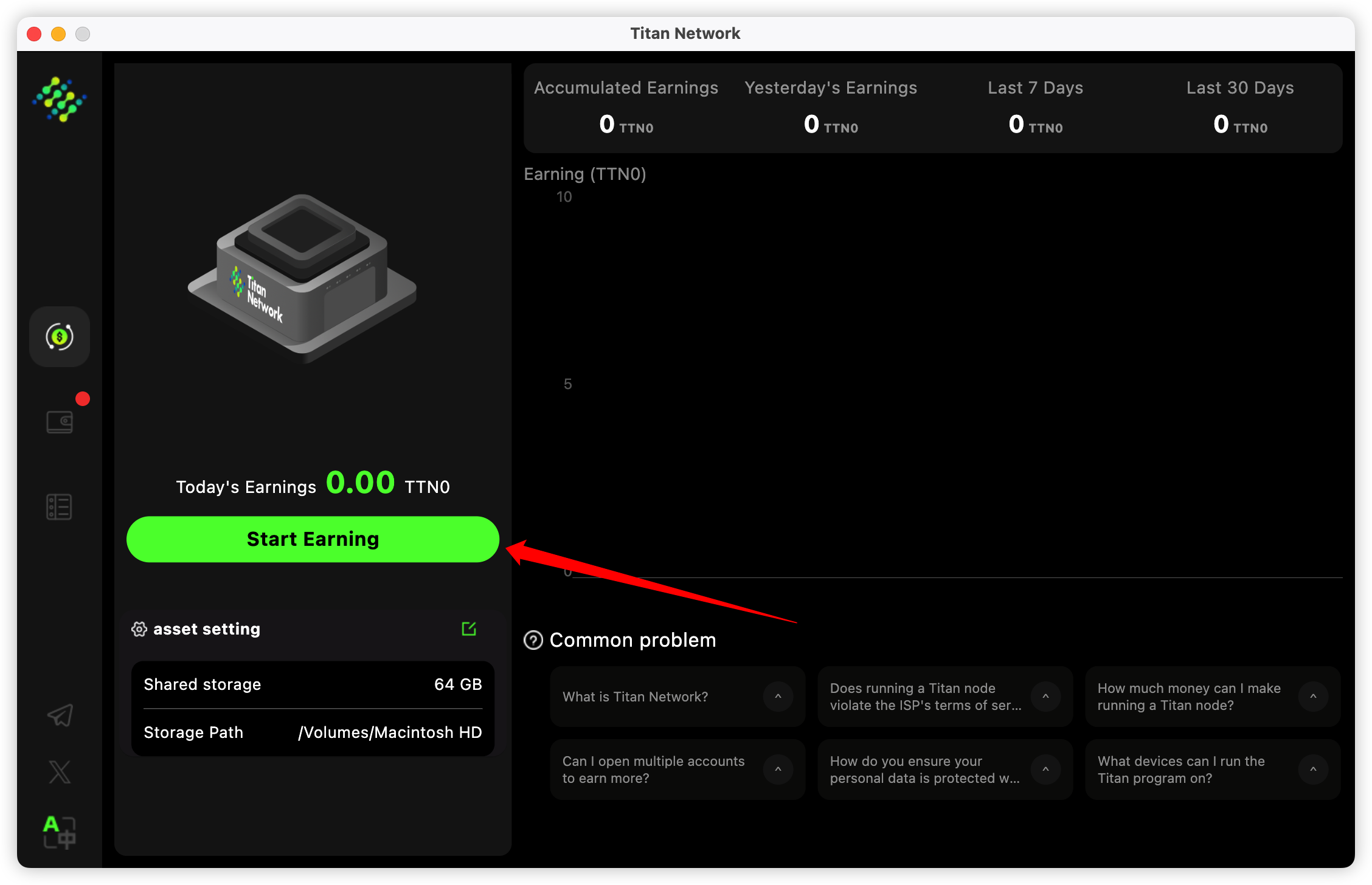
### 1.Click to start earning

<figure><img src="https://content.gitbook.com/content/6MWUoQBijnrc0tNWtAzG/blobs/WV1EMgQwIoxGbMht3IX4/image.png" alt=""><figcaption></figcaption></figure>